
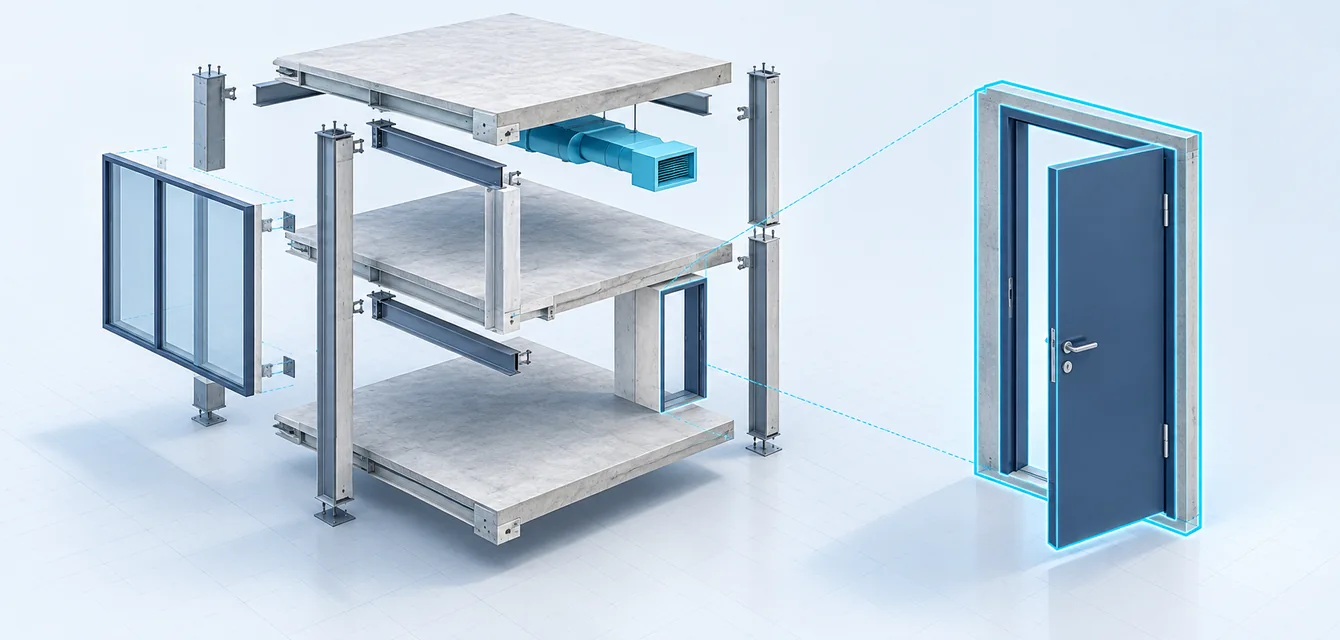

In brief: An IFC viewer lets you open and inspect a BIM model without using the designers' authoring software. In myPlan.cloud, you do this in your browser: explore the building, look at discipline-specific elements, create sections, measure distances and read the element data included in the file. Your project permissions determine which models you can access.
Suppose you need to understand where a ventilation duct runs. Rather than opening another drawing, you can find the area in the 3D model, turn the view around and look at the services on their own. The drawing still matters, but seeing the arrangement in three dimensions can help resolve a question that a floor plan leaves open.
You do not need to become a BIM modeller to do this. Site managers, project managers and trade teams often need different answers from the person who created the model. A suitable IFC viewer lets them use the shared model to investigate those questions.
What is an IFC model, and why is it useful to the project team?
A shared format between different design applications
IFC stands for Industry Foundation Classes. It is an open, vendor-neutral standard for exchanging built-asset geometry and associated information between applications. You can read about the standard in the buildingSMART introduction to IFC.
In practice, a designer might create a model in Revit and export it as an IFC file. You then open it in a compatible viewer. You do not have to use the same application to inspect the model they have shared.
There can be data behind the 3D shapes
A door in a model may be more than a shape. It can also have dimensions, identifiers, material information and other technical properties. The same applies to walls, slabs and building services.
What you can see depends on the source model and the export settings. If a property was not included in the IFC file, the viewer cannot supply it. It is worth agreeing on the information you need when the model is handed over, particularly if your work depends on specific properties.
What can you inspect in an IFC viewer?
Start with the building as a whole
When you open an unfamiliar model, the exterior 3D view is a useful starting point. Look at the overall building, the floors and how the spaces relate before focusing on a detail. If you did not create the model, a quick look around helps you find your bearings.
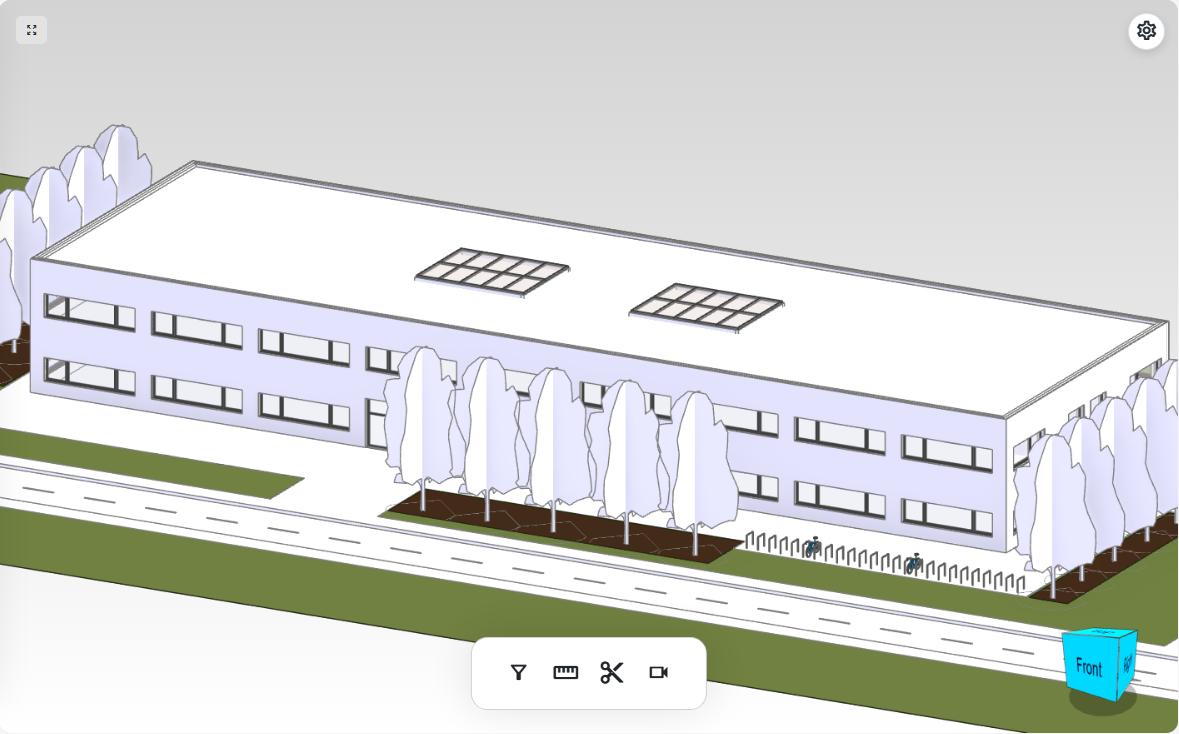
Move closer to the detail you need
Rotate, move and zoom the model to suit the question you are investigating. If something obscures a connection from one angle, look from another. You can focus on an interior space or a selected element without keeping the entire building in view.
Filter out what you do not need
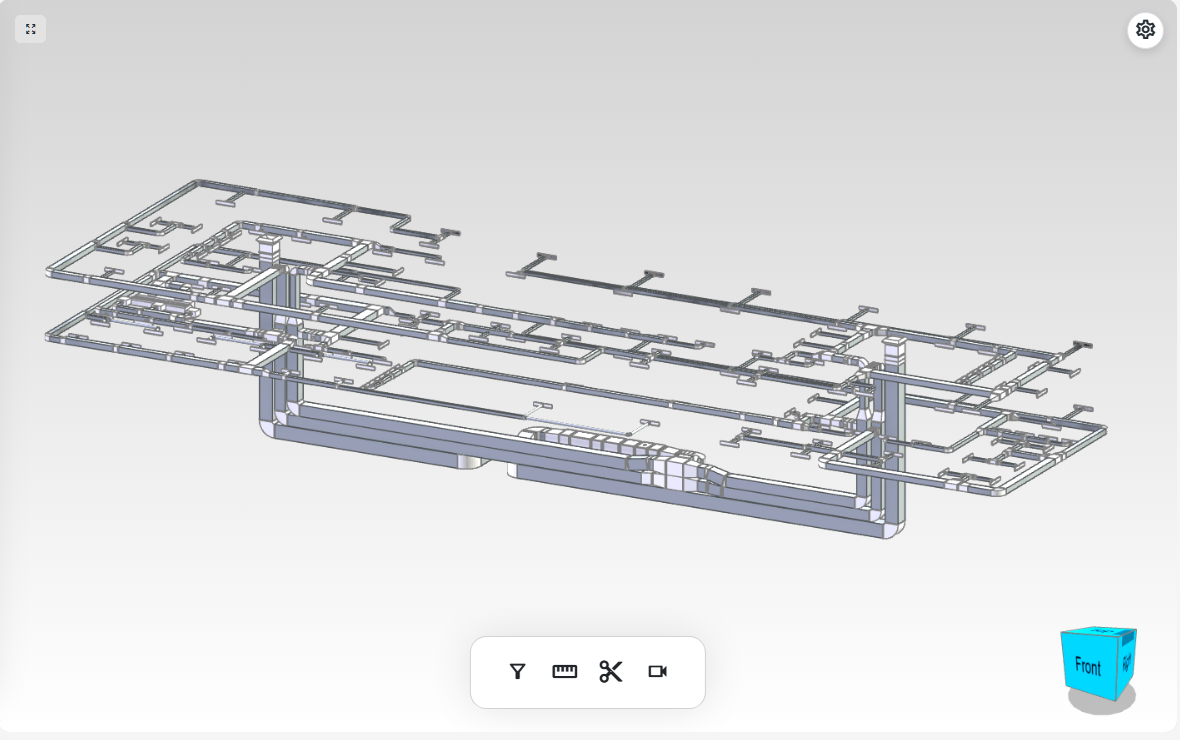
A detailed model can be difficult to read when elements overlap. If you are following a ventilation route, temporarily hiding the structure and architectural elements can make the view easier to understand.
In myPlan.cloud, you can choose which discipline models or elements to display. Inspect them separately, then bring the relevant IFC files back into a combined view.
Use a section to see behind an obstruction
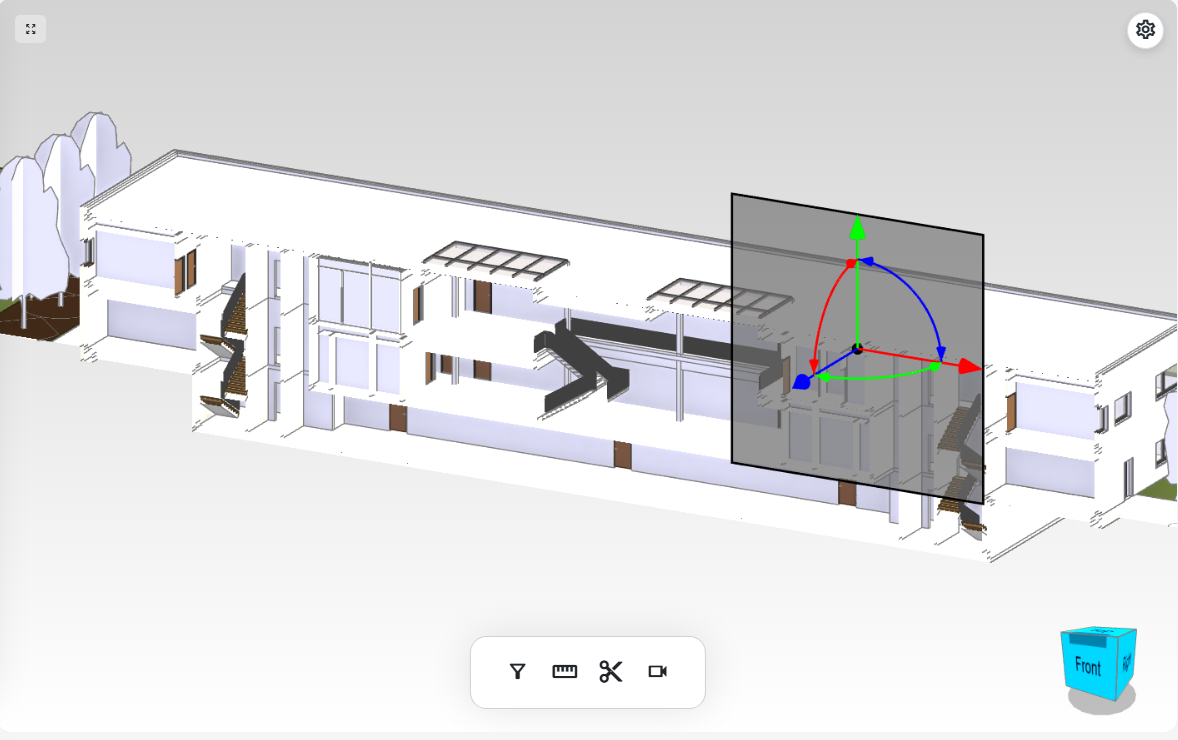
If an external wall hides the area you need, a section plane can reveal the building's interior. Adjust its position and direction to match the detail you are examining. You are not limited to the sections already prepared in the drawing set.
Check the distance you are wondering about
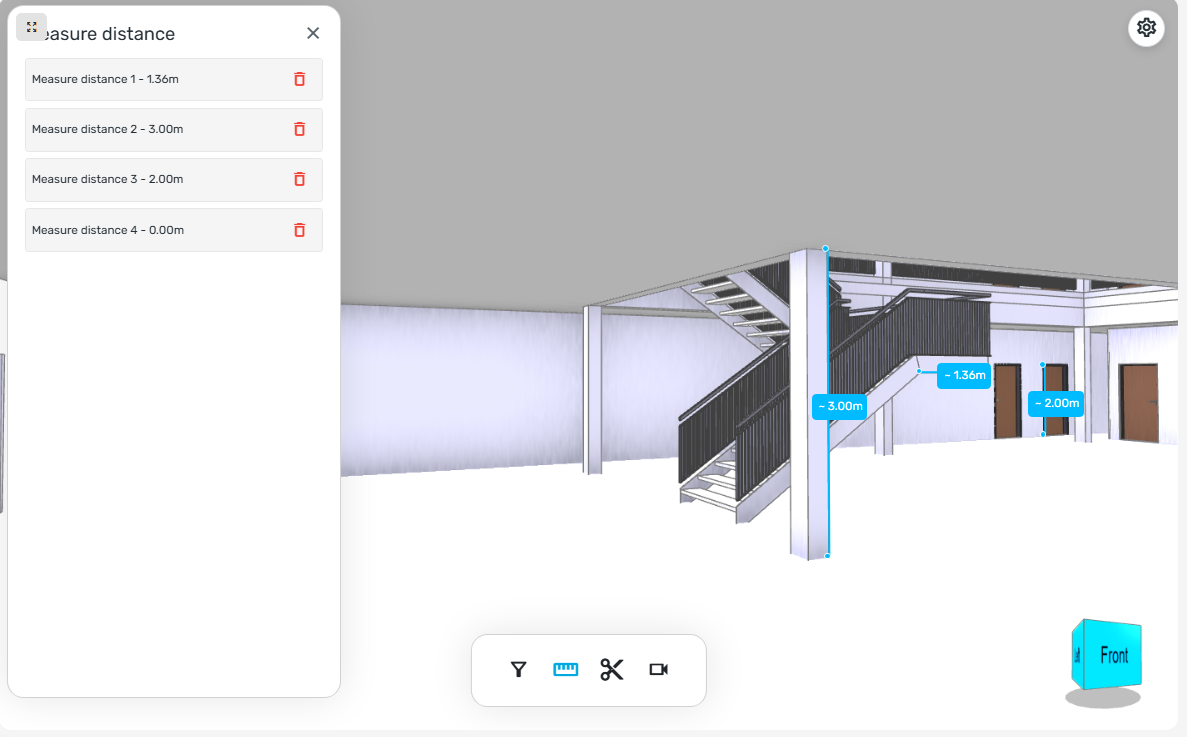
A dimension may be missing from the drawing you have open. The myPlan.cloud virtual measurement tool lets you select two points and measure the distance between them in the model.
Treat the result as a model measurement, though. Its accuracy depends on the geometry and the points you select. If the work requires an on-site dimensional check, measuring in the viewer does not replace it.
Select an element and open its property sheet
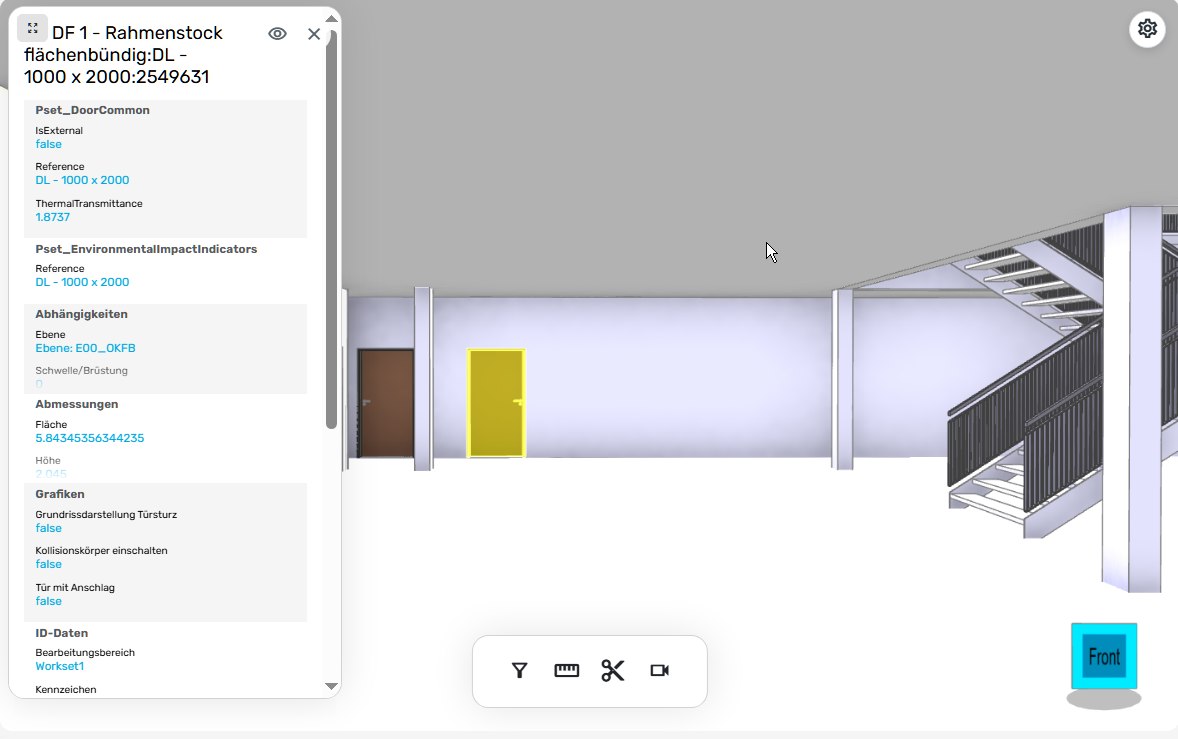
If you need to know more about a door or another element, select it in the model. Its property sheet may show dimensions, identifiers or material information. Highlighting the element and focusing the view on it makes clear which object the properties belong to.
Take the element data into a spreadsheet
If you want to work further with the information you have found, myPlan.cloud can export IFC model element data in XLSX format. The spreadsheet can be used for further checks or calculations.
Before using it, look through what the export contains. Exporting will not fill gaps in the model data, and you should check that the spreadsheet is suitable for the task you have in mind.
Look at the discipline models together
Viewed on its own, a pipe or ventilation duct is easier to follow. In a combined view, you can also see how the systems relate. If a crossing looks questionable, move closer and inspect it from another angle.
This is a visual check. Displaying several models together does not, on its own, provide automated clash detection.
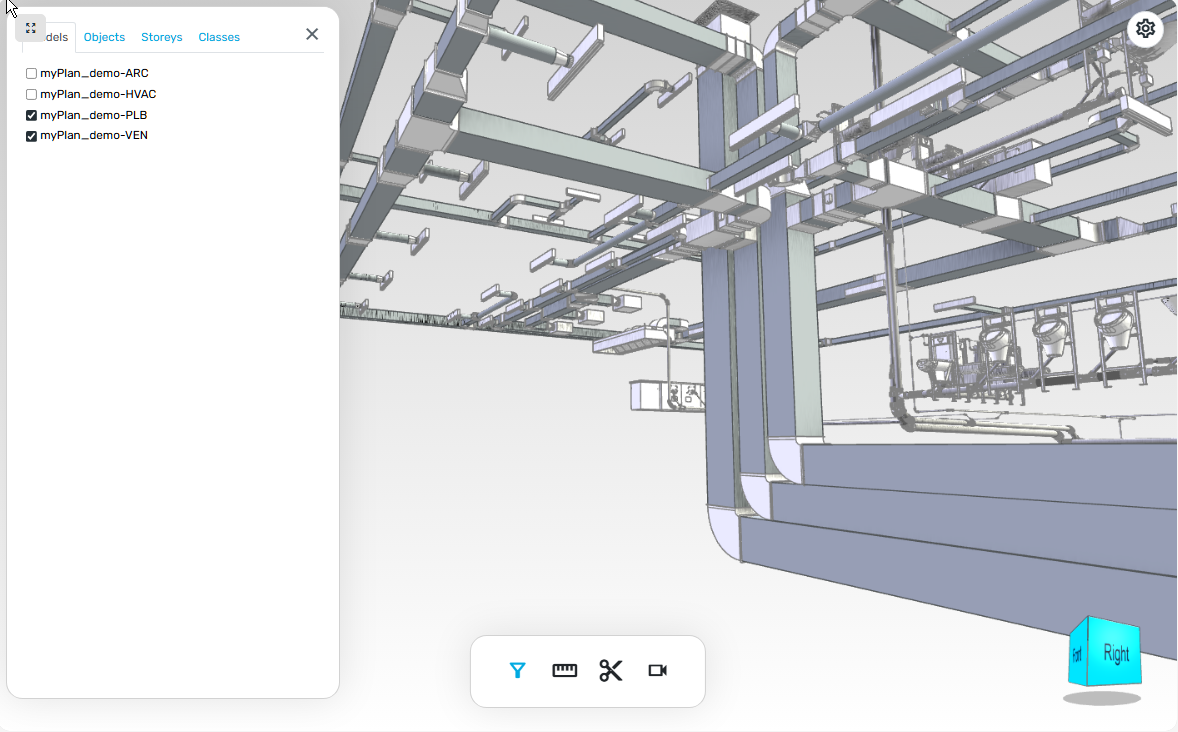
The screenshots show a demonstration model. The element names visible in the interface belong to the model's original data.
How do you use an IFC viewer online?
In myPlan.cloud, you upload the IFC file to the project documents and open it in the built-in BIM model viewer. There is no separate authoring application to install for viewing: you need a browser, an internet connection and the appropriate access permissions.
For a concise summary of the viewer's features, see our online IFC viewer for construction teams page.
Do you need to inspect a model or change the design?
If you want to understand a shared model, a viewer may be the right tool. Changing the proposed design is a different task. It helps to be clear about the role of each application before choosing one.
| Aspect | BIM authoring application | Browser-based IFC viewer |
|---|---|---|
| Main purpose | Create and edit the model | View and inspect a shared model |
| Typical user | Designer or modelling specialist | Project manager, site manager and other authorised participants |
| Available data | Information managed in the source model | Supported information included in the IFC export |
| Changes | Modify the proposed design | Adjust views, filters, sections and measurements for inspection |
IFC is not a read-only format in every application. In the myPlan.cloud IFC viewer, however, the tools are for viewing and inspection. Design changes are typically made in the authoring application, followed by a new IFC export.
How do you share IFC models with the rest of the team?
Give the models a clear place in the project documentation
When a model circulates in several emails and file copies, it can become unclear which revision someone has opened. Sharing an IFC model therefore involves more than forwarding the file.
In myPlan.cloud, you can keep models in the designated document folders alongside drawings and other project materials. The team then knows where to look for the model files.
Check access and make the model revision clear
Use a consistent naming convention for the discipline and model revision when uploading, then check participants' access. They can open the IFC files according to their assigned permissions.
There is another distinction to make: the most recently uploaded model is not automatically the revision approved for construction. The team also needs to know which version can be used for which purpose. Shared storage cannot make that decision for you.
Steps for viewing an IFC model in myPlan.cloud
- Choose where the model belongs. Select the document folder and set the required access permissions.
- Upload the IFC file. Allow time for processing. A larger or more complex model may take longer to convert.
- Open the viewer. Look around the model to find the floor or area you need.
- Narrow the view. Display the disciplines and elements relevant to your question.
- Inspect the detail. Create a section, measure between two points or open the selected element's property sheet.
- Export if you need to. You can take the element data into an XLSX spreadsheet; check its contents before using it.
What should you watch for while using the viewer?
Allow processing time for a large model
An IFC file may not open immediately. Its size and complexity affect processing time, while your device and connection can also influence the viewing experience. If the view feels crowded, try filtering it first. You do not need every element on screen at once.
If a property is missing, check the export too
An empty property field is not necessarily a viewer error. The information may never have made it into the IFC file. Ask the model author what the source model contains and which export settings were used.
For example, the Autodesk IFC export documentation describes separate options for transferring property sets and quantities.
Check the drawings and model status as well
A 3D view can make a detail easier to understand, but it is not always enough for a construction decision. Review the relevant drawings and the model's status, and carry out the necessary professional checks.
Frequently asked questions about IFC viewers
Do I need Revit to open an IFC file?
No. A compatible IFC viewer lets you open the shared model without the original authoring application. In myPlan.cloud, you can view it in your browser.
Can I use an IFC viewer if I am not a BIM specialist?
Yes. Project managers, site managers and other authorised participants can explore the model and inspect its details. Navigation takes some practice; interpreting technical data requires knowledge appropriate to the question you are investigating.
Can I edit the design in the myPlan.cloud viewer?
The tools described here are for viewing and inspection. Hiding an element, creating a section or changing the viewpoint does not change the proposed building.
Why can I not find every property on an element's property sheet?
Only information included in the IFC file and supported by the viewer can be displayed. If something is missing, check the source model and export settings first.
Can I open several discipline-specific IFC models together?
Yes. In myPlan.cloud, several discipline models can be displayed in a combined view. You can then visually inspect the relative positions of pipes and ventilation ducts, for example.
Why do I have to wait before the model opens?
The uploaded IFC file needs processing and conversion before it is ready to view. The time required depends on factors including the file size and model complexity.
Related BIM guides
- What is BIM? A practical guide to Building Information Modelling – if you would like to explore the fundamentals of BIM.
- BIM issue management in myPlan.cloud – if you want to see how a construction task can be linked to the model.
- Construction task tracking from assignment to review – if you want the full task workflow, with drawing and model references.
Want to see how your team could use the IFC viewer?