

In short: Construction task management is the process of recording, assigning and tracking work items, issues and inspection actions. Each task needs a clear location, responsible person or group, deadline and expected outcome. A task management system keeps these details together with relevant drawings, feedback and status changes.
A site inspection ends with a few damaged finishes, a water ingress observation and several questions for the trades. Someone takes photographs, someone else updates a list, and a contractor receives a verbal instruction. A few days later, the difficulty is no longer finding the issue. It is finding out who is dealing with it and when the work can be checked.
Task management gives the team a way to follow that work. It does not replace the project manager's judgement or technical inspection, but it helps keep actions from disappearing into separate emails, notebooks and conversations.
What construction task management covers
A construction task can be outstanding work, a defect, a correction, an inspection finding or the next action agreed in a coordination meeting. Each requires someone to deliver a defined result at a particular location and within an agreed timeframe.
On complex projects, these actions arise alongside the planned construction activities. Remedial work before handover can create a substantial coordination workload, although task management is useful much earlier in the project as well.
What information belongs in a task
- A specific description and location, supported by a photograph or drawing reference where needed.
- The person or group responsible for the work.
- An agreed deadline and, where relevant, a planned start date.
- The expected result and the criteria used to review it.
- The current status, feedback and the person responsible for acceptance.
“Repair the floor finish” leaves too much open to interpretation. Without the room, affected area, defect description and acceptance criteria, the contractor has to ask again what is required.
Following a task from recording to review
An effective workflow distinguishes assignment, the contractor's completion report and acceptance of the work. Agree at the start of the project who can carry out each step and what information they need to provide.
- Record the observation. Describe the work, mark its location and attach the information needed to understand it.
- Assign responsibility and a deadline. Check that the assigned participant can access the relevant information.
- Follow the work. Keep questions, changes and updates with the task they concern.
- Request a completion report. Ask for a clear update when the work is finished, with photographs where appropriate.
- Review the result. The designated reviewer accepts the work or records what still needs to be corrected.
A notification can draw attention to an action. It cannot establish that the work has been done or that the result meets the requirements.
Why a simple to-do or snag list may not be enough
A short list can work when there are few tasks and everyone is working in the same area. With several trades, many locations and different responsibilities, the context becomes harder to retain. A list may not show who received the instruction, what was discussed or whether the work was checked after being marked complete.
A task management system is useful when it keeps that information with the task. A participant joining the discussion can review its history instead of reconstructing it from emails and site notes.
How myPlan.cloud supports task management
For a concise overview of the features, see our construction task and snag management software page; this section walks through the workflow in detail.
Need a shared task workflow? Explore how myPlan.cloud connects locations, owners, deadlines, photographs and status changes in one construction task management system.
Task lists with responsibilities and statuses
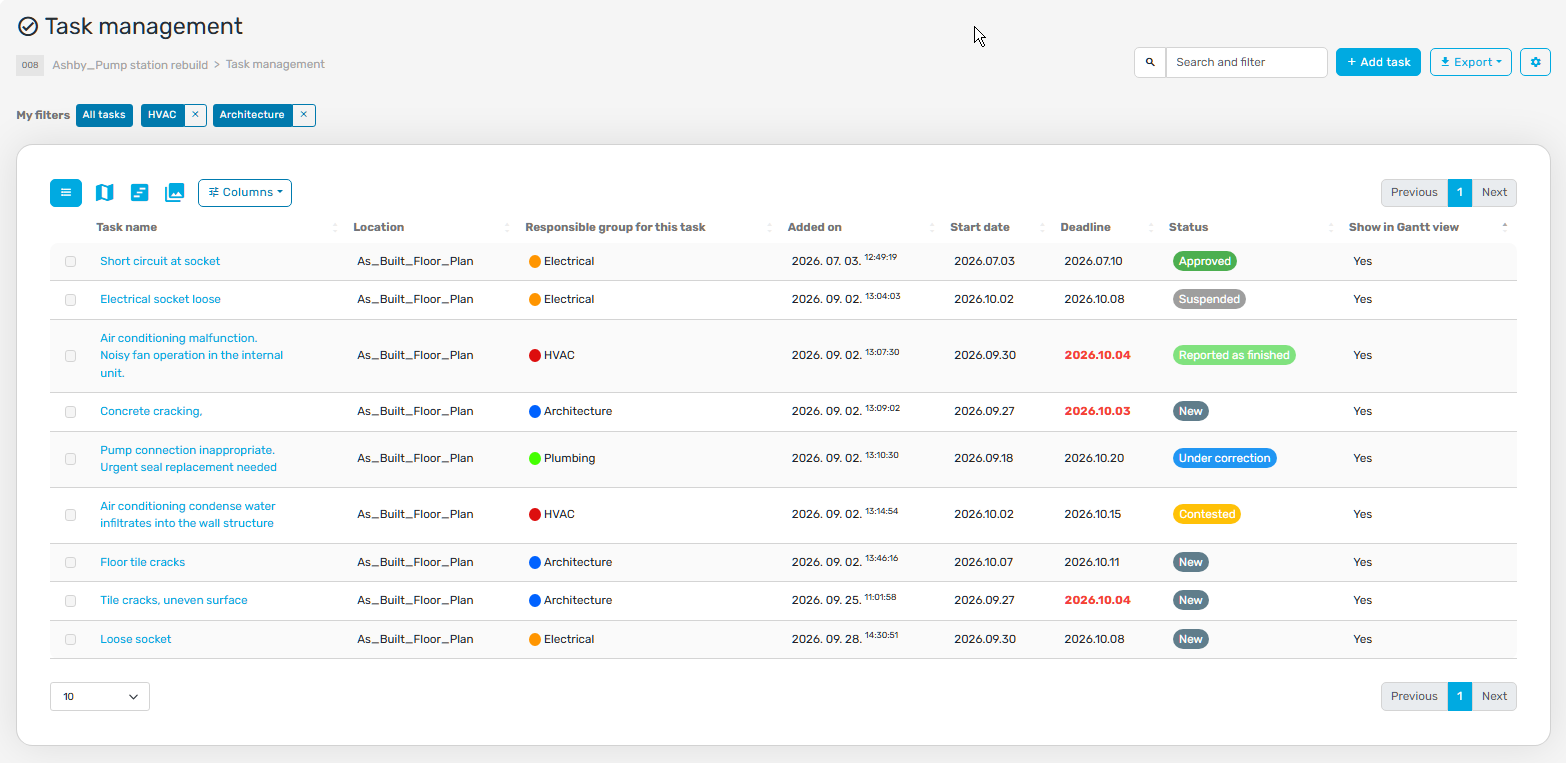
The myPlan.cloud task list can show the task name, location, responsible group, start date, deadline and status together. Filters help you focus on the work that needs your attention.
A technical inspector might look for work reported as finished and awaiting review. A trade supervisor may need the open tasks assigned to their own group. Saved filters can make these regular checks easier to repeat.
Reviewing deadlines in a Gantt view
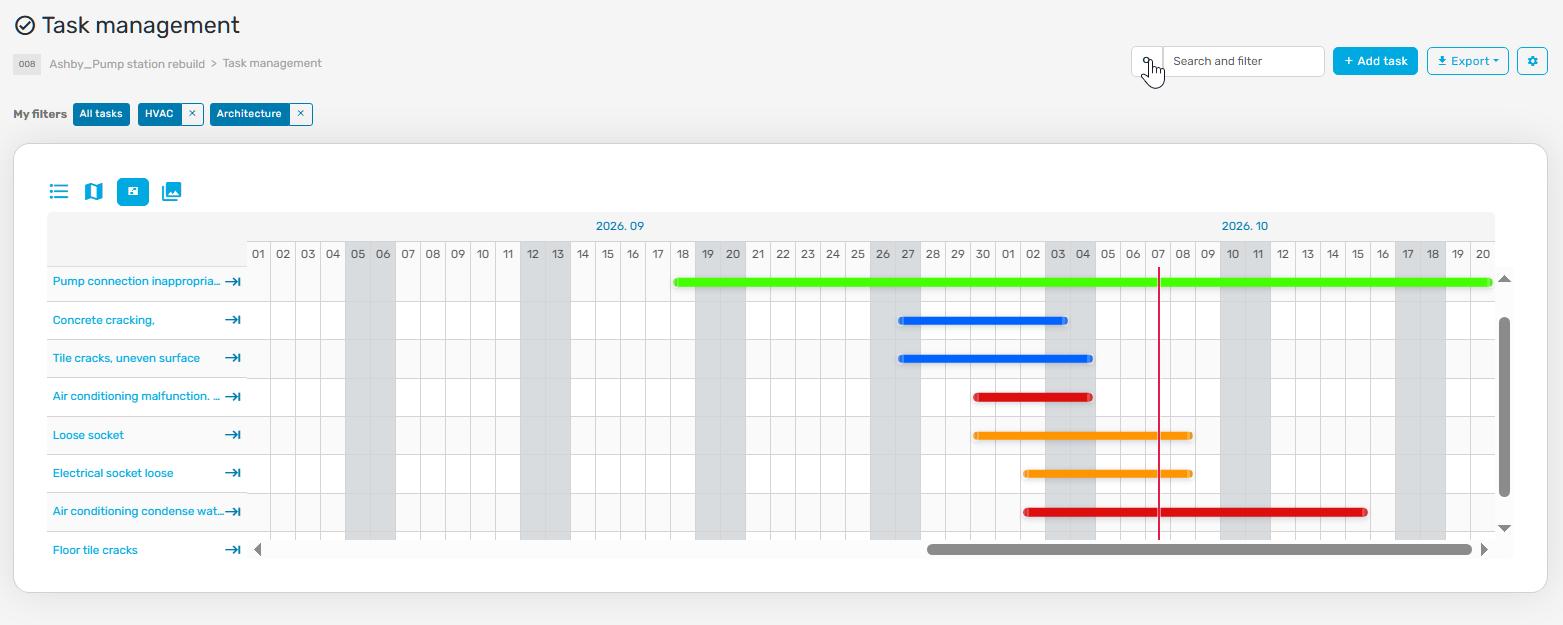
When start dates and deadlines are the main concern, tasks can also be viewed on a timeline. The Gantt view shows the recorded durations and which work items run at the same time.
This supports coordination, but a task timeline does not by itself establish that trade dependencies or resource allocations are correct. The project team still needs to agree those arrangements.
Permissions and notifications
The team also needs to decide who can access task information and who can change a task's status. The group and permission settings in myPlan.cloud support this division of responsibility.
Notification settings help route task updates to the people concerned. Check the recipients and notification setup when the project starts. Notifications do not replace clear assignment or a check that the participant has access to the relevant documents.
Reporting completion and accepting work are different steps
Statuses provide a concise indication of progress. The supplied task list distinguishes, for example, new tasks, work under correction, tasks reported as finished and approved work.
The team needs a shared understanding of those labels. A contractor's completion report is not the reviewer's acceptance. The designated participant with the appropriate permissions should record the acceptance decision.
Custom fields and labels
Projects do not all need the same task information. In myPlan.cloud, custom fields and labels can add details such as a trade or a project-specific classification.
Start with a small set of fields the team will actually use. Asking for too much information on every task can make it harder to keep the records current.
Filtered exports and management reporting
A project manager often needs an overview by trade, status or deadline rather than every detail of every task. Export and reporting options in myPlan.cloud allow the relevant tasks and data to be selected. Depending on the export settings, the output can also include photographs and comments.
The quality of that overview depends on the recorded information. Exporting an outdated status does not make it more accurate.
Keeping drawings and BIM models with the task
A construction task often needs a floor plan, detail drawing or discipline document to make the instruction clear. Task management and construction document management can be used together in myPlan.cloud, so a work item can refer to the material needed to understand it.
Marking the task location
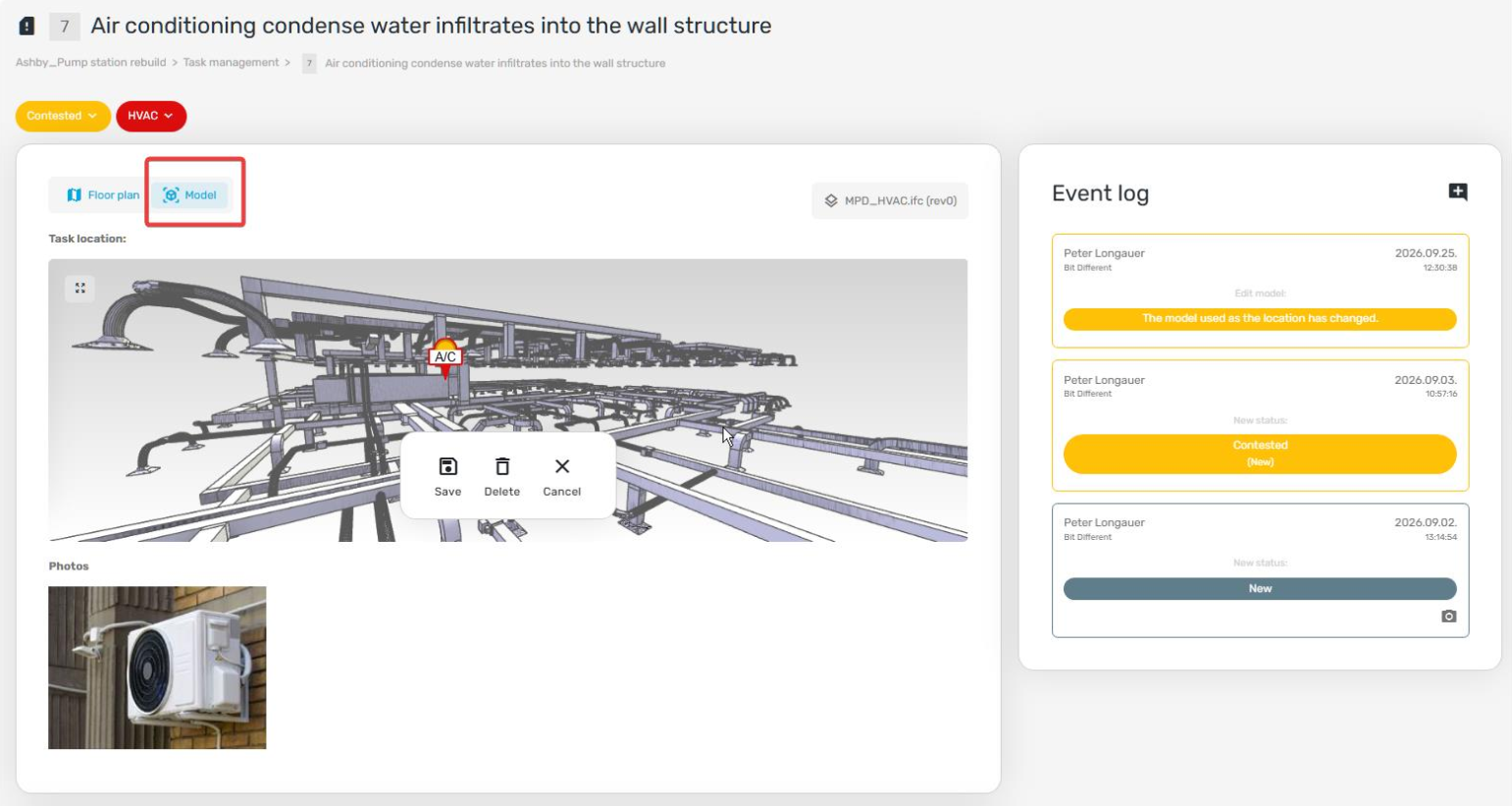
A marker on a drawing can identify the room or area requiring attention. Where a spatial relationship is difficult to understand in two dimensions, the task location can also be marked in an uploaded BIM model. Available model element information can provide further context for the task.
Our guide to BIM issue management explains the model-based workflow in more detail. For the product workflow, explore the online IFC viewer; the IFC viewer guide covers model opening and sharing in more detail.
Confirm which drawing or model revision the location refers to. The most recently uploaded file is not necessarily the revision approved for construction. The drawing version control workflow helps teams track revisions and recorded approval status.
An example of a traceable remedial task
Illustrative example: A site inspection identifies a loose electrical socket in a corridor. You record the floor and exact location, attach a photograph, assign the electrical trade and agree a deadline. You also record what the reviewer will check when the work is reported complete.
The assigned participant reports completion. The reviewer checks the result and either accepts it or records the further action against the task. This example illustrates coordination; it is not a customer case study or an instruction for carrying out electrical repairs.
Introducing task management on a project
Begin with a specific use case, such as inspection findings or a trade's outstanding work. Agree the required information, the responsible groups and who can accept completed tasks.
Test the full process with a few tasks. Can the assigned participant open the referenced drawing and understand the instruction? Can the reviewer find the completion report? Answering those questions makes it easier to decide which filters, fields and notifications the team needs.
Frequently asked questions about construction task management
How does task management differ from overall project scheduling
Task management follows the responsibilities, deadlines and statuses of individual work items, observations and corrections. Project scheduling organises larger work packages and their relationships. A Gantt view of tasks can support that work, but does not automatically replace a detailed project programme.
Is a task management system only for defects
No. It can also record outstanding work, inspection findings and follow-up actions from coordination meetings. Remedial work before handover is a common use case, not the only one.
Do construction tasks require a BIM model
No. A task location can be marked on a drawing. A BIM model provides additional context where the spatial setting or available element information matters.
Does reported as finished mean the work has been accepted
Not necessarily. Reporting completion is an update from the person carrying out the work. Acceptance is the decision of the participant authorised to review it.
Do notifications guarantee that a deadline will be met
No. Notifications support follow-up, but the task still needs a clear description, assigned responsibility, an agreed deadline and current progress information.
The next step for your project
Take a few open tasks and check whether each has a clear location, owner, deadline and acceptance process. If that information is spread across different places, task management in a shared project environment is worth exploring.
Would you like to see how myPlan.cloud task management could fit your workflow?
Explore task management features · Request a free demo · Open a trial environment