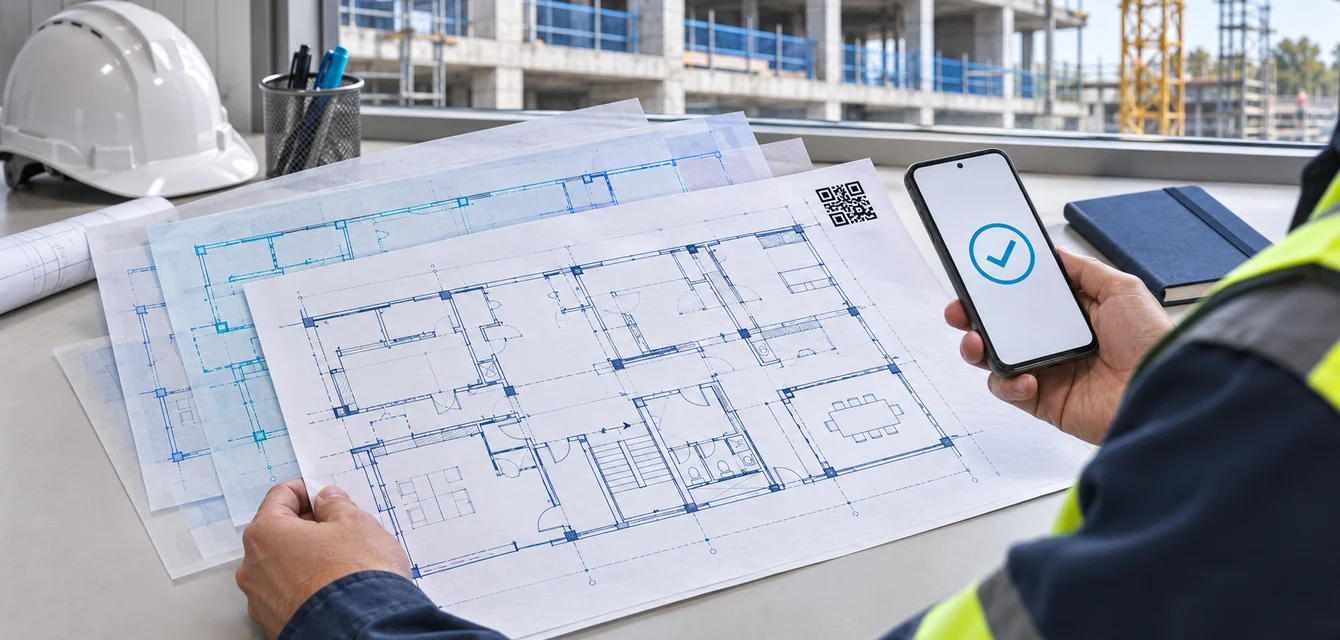

In brief: To check that you are using the latest drawing revision, verify both the revision identifier and its approval status. In myPlan.cloud, scanning a printed drawing's QR code shows the current status of that revision, including whether it is approved and whether a newer revision has been uploaded. Uploading a new revision does not approve it. The project team still needs to arrange delivery and use of the appropriate drawing on site.
The site manager still has yesterday's printed floor plan on the desk. Meanwhile, the designer has uploaded a revised drawing. Nothing on the paper tells the people using it that something has changed, and its earlier approval has not simply disappeared.
The risk becomes a construction error when nobody checks the drawing's status and work continues from an outdated revision. Drawing revision control helps the team spot that mismatch. It also keeps the document version history available when someone needs to understand a change later.
What makes a drawing version a formal revision
A saved working version is different from an issued drawing
Drawings change throughout design. When a designer saves an intermediate stage of a substantial modification, that saved state is a version. It is not necessarily a drawing formally issued to other project participants.
A revision is a formally issued version with a unique identifier. Revision numbers establish the sequence of issues, and reviews, approvals or rejections can be associated with each revision. Issuing a drawing and approving it for construction are therefore separate steps.
Version tracking also explains earlier decisions
Revision tracking helps show when a drawing changed, why it changed and which revision is current. Earlier versions need to remain accessible as well. An unfamiliar detail or revised services route may only make sense when you can open the previous drawing and read the comments associated with it.
Check the latest drawing revision and approval separately
What changes when a new revision is uploaded
Suppose a drawing is both the latest revision and approved. When a newer revision is uploaded to myPlan.cloud, the previous revision remains approved but is no longer the latest. Uploading the new drawing does not automatically revoke the previous approval, nor does it automatically approve the new revision.
Two separate questions matter: has this particular revision been approved, and is there a newer one in the system? A newer drawing awaiting approval is not, by itself, an instruction to switch to it. The team needs to resolve the difference through the project's approval and drawing issue process.
| Check | What it tells you | What to watch for |
|---|---|---|
| Approval status | Whether this particular revision is approved | An approved revision can have a newer upload |
| Latest revision status | Whether a newer revision exists in the system | The newest upload may still be awaiting approval |
| Use on site | Which drawing the team is actually working from | Delivery and use of the appropriate drawing still need to be organized |
Why an old drawing can remain on site
Even an updated, approved PDF does not reach every work area by itself. Printing, distribution or replacement on site can stall, particularly when several trades are working at once and weather or unexpected events disrupt the day's arrangements.
Document management software cannot physically replace the drawing in a contractor's hands. It can give the team a way to identify a mismatch between that printed copy and the drawing information currently held in the system.
How to check a printed drawing using its QR code
The code identifies the revision while its status can change
A myPlan.cloud QR code identifies the drawing revision. The associated status is held in the system and can change, so scanning the code on a phone shows the status at the time of the check.
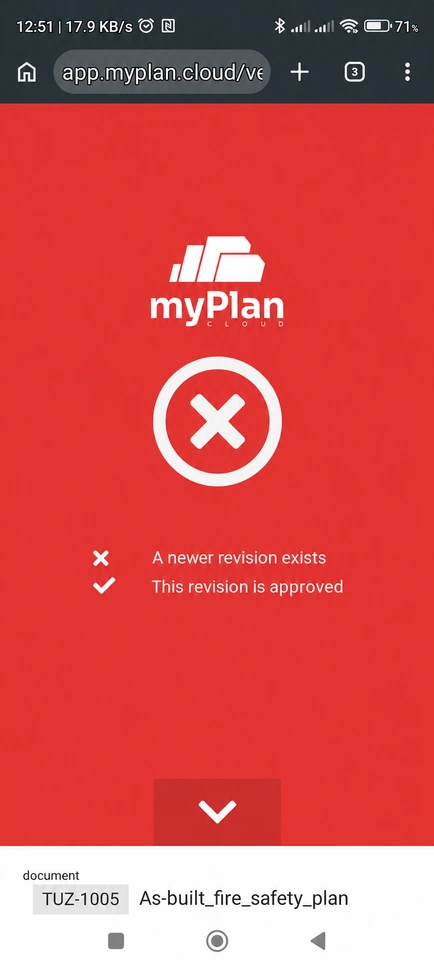
If a newer revision has been uploaded since an earlier drawing was approved, scanning the old paper copy reveals that fact. The site manager can see that the drawing in hand is approved but has a newer revision. That information is available even if the newer revision has not yet been approved.
What happens after the new drawing is approved
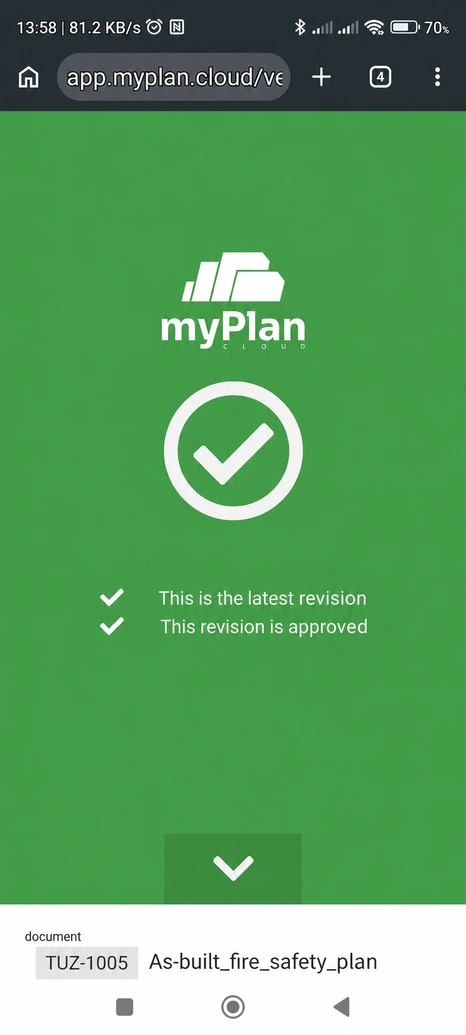
The new revision has its own QR code. Once it has been approved, printed and delivered to the site, scanning the code on that copy checks the new revision's status. Provided no further revision has been uploaded, the system shows that it is both the latest revision and approved.
The check is useful when someone acts on the result. If a newer revision exists, confirm its approval and suitability for the work, then make sure the relevant teams receive the appropriate drawing.
How drawing revision control starts during upload
Make the revision number identifiable in the filename
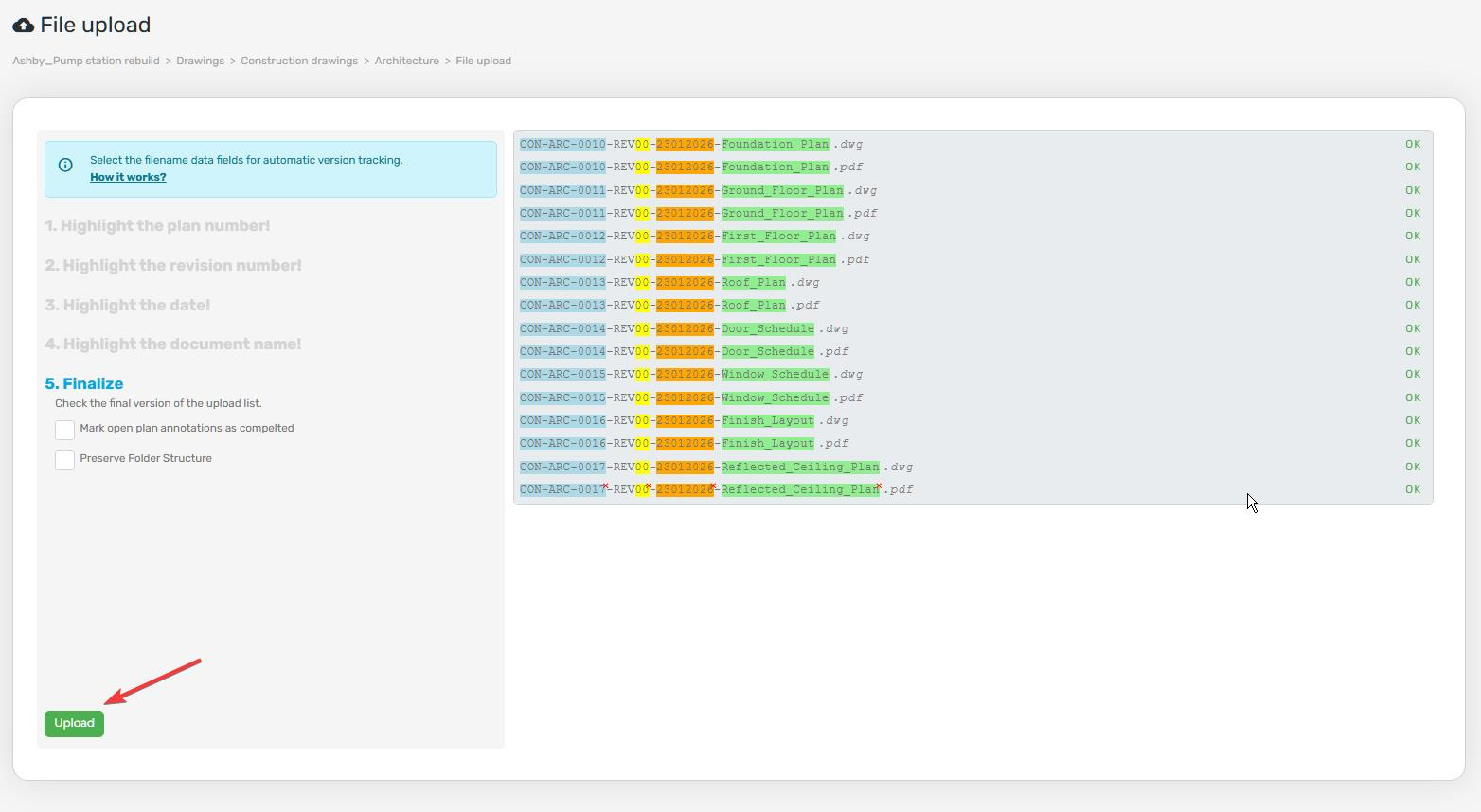
For revision tracking to work, a distinct part of the drawing filename needs to identify the revision number. The designer is responsible for maintaining the correct sequence of revision numbers.
During upload to myPlan.cloud, select the characters in the filename that represent the revision number. This tells the system which part of the name to interpret as the revision identifier. The screenshot highlights that filename segment in yellow.
Keep the upload record connected to the reason for the change
Some information about the new revision is recorded automatically, including the upload date and the person uploading it. The background to the change also needs to remain connected to the document's history.
The reason for the change, its detailed description and the person requesting it remain associated with the earlier revision where the need for modification arose. Change proposals, reviews, approvals and rejections all form part of the drawing's history. These events, linked to people and timestamps, help explain how the current drawing developed.
When earlier drawing revisions are useful
Access to the latest drawing revision supports day-to-day work. Document version history provides context when questions arise later. Earlier revisions can help in the following situations:
- Investigating a construction discrepancy. Check which drawing was valid during a particular work stage and how the completed structure relates to it.
- Reviewing the effects of a change. See which earlier solutions were affected and what the revision meant for other trades or structural elements.
- Supporting additional work and cost requests. Comparing revisions can help demonstrate a change in technical scope. The request itself needs to be considered alongside the other project records.
- Clarifying technical questions or responsibility. Establish which drawing was available at a particular time, who approved it and when it changed.
- Preparing as-built documentation. Retrieve the revisions used during construction to support the record of what was actually built.
What digital revision control adds to file storage
Construction documentation includes the decisions attached to it
Email, local folders and spreadsheets can support version control. As more participants and revisions become involved, however, it takes more manual coordination to keep drawings, approvals and comments connected.
myPlan.cloud works as a common data environment, or CDE. In this context, the important point is that a drawing and its associated information remain available together, with their relationship intact. That information can include review comments, approval records and connections between revisions.
Think of the drawing files as bricks and their metadata as mortar: the relationship depends on both. An approval email stored in a separate folder can make it harder to establish exactly which drawing issue was accepted.
Revisions are available as layers of one document
Successive revisions in myPlan.cloud form layers of the same document. The latest revision appears at the top of the detailed document view, while earlier revisions can be opened with one click.
Revision comparison overlays two drawing versions to help show their differences. This lets the team compare the drawing content as well as checking filenames and statuses. Project participants still need to assess what those changes mean technically.
A checklist for using the appropriate drawing on site
- Keep revision numbering consistent and select the correct filename segment during upload.
- Check approval and latest revision status separately.
- Scan the printed drawing's QR code on site.
- If a newer revision exists, establish whether it is approved and which drawing should be used for the work.
- Deliver the appropriate drawing to every relevant team and manage the use of superseded copies.
- Retain previous revisions, change requests and associated decisions.
Frequently asked questions about drawing revision checks
Is the latest drawing revision automatically approved?
No. Upload and approval are separate events. Check the newest revision's status before using it for construction under the project's agreed process.
Does an earlier drawing lose approval when a new revision arrives?
In myPlan.cloud, the earlier revision remains approved but is no longer the latest. The system treats these as separate pieces of information.
Can an old printed drawing show that a newer revision exists?
Yes. Its QR code identifies the scanned revision and retrieves that revision's current status from the system. A newer revision can therefore be flagged even when the older printed copy remains approved.
Does the system identify the revision number without any input?
During upload, you need to select the filename characters representing the revision number. The designer is responsible for numbering successive issues correctly.
Why retain old revisions once a new drawing is available?
Previous drawings and associated events help explain changes, investigate construction discrepancies and prepare as-built documentation. The newest file alone does not provide that history.
Does digital revision control replace drawing distribution on site?
No. myPlan.cloud supports identification, status checking, review, approval and comparison. The project team still needs to organize delivery and use of the appropriate drawing.
Related guides
These guides cover recording and assigning site actions arising from a drawing change:
- What is construction task management – recording and tracking the work that needs action.
- Construction task assignment and notifications – responsible groups and follow-up.
Explore your own drawing issue workflow
You can also explore the related capabilities on the drawing version control page.
To discuss how drawing revision control could fit your project, send an enquiry through the form. Our colleagues will get in touch.
I'm interested · Launch the sandbox
On the next page, you can register and then sign in to explore the myPlan.cloud interface.