Keep drawing versions together, compare revisions and check which drawing is valid to use. myPlan.cloud's automatic version control helps you stay on top of a project's changing drawings.
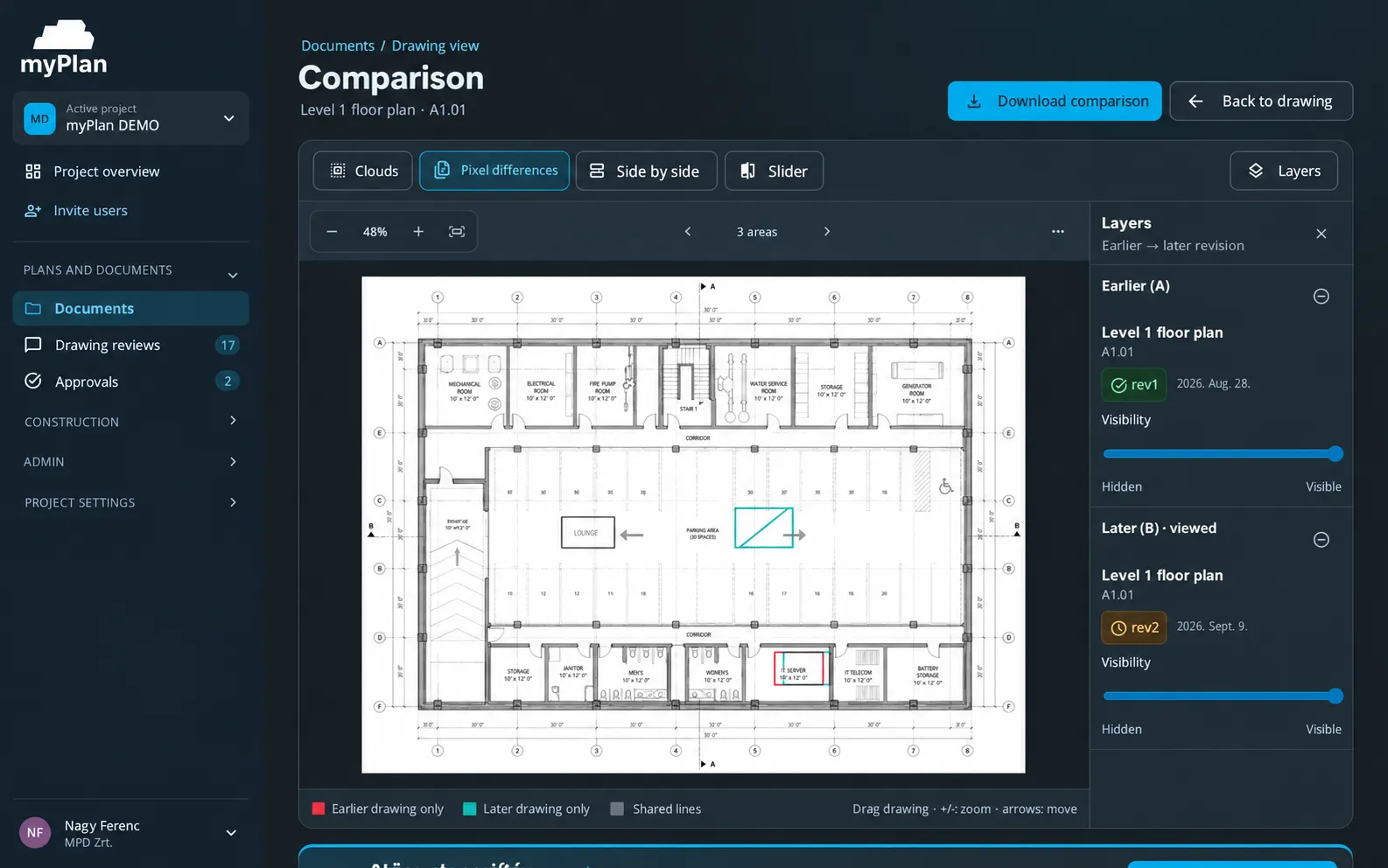
The file name says final, yet another version arrives. When revisions are handled separately across the team, it's hard to tell what changed and which drawing the site should work from.
Drawing version control keeps the successive versions of the same drawing in one history and shows what changed between them. “Latest” is about time, “approved” is a decision: myPlan.cloud tracks both, so the team doesn't have to guess from the file name which drawing is valid.
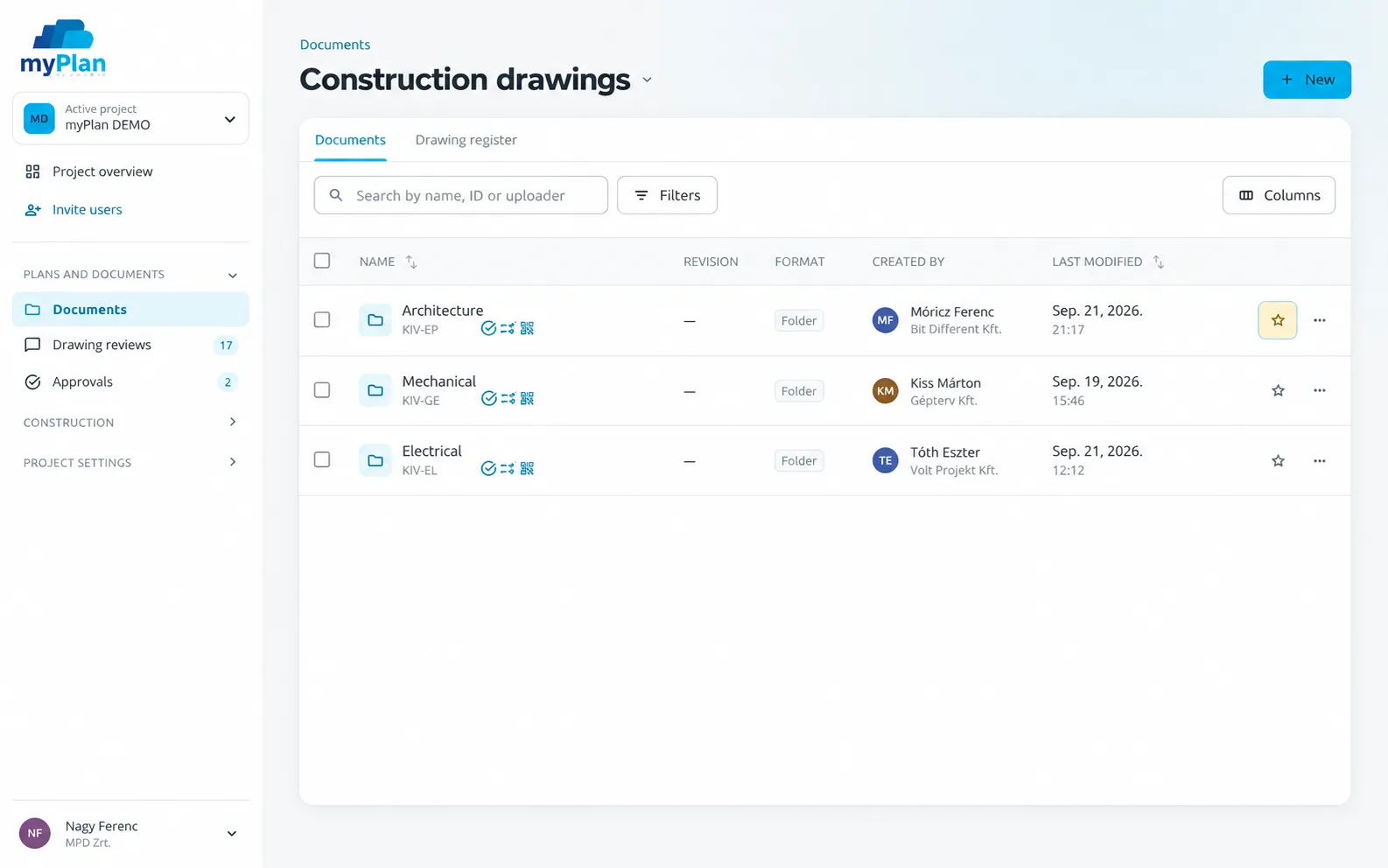
Revision history, comparison and status – on the same document.
You attach the new version to the original document, so the latest revision is always clear.
Examine the differences between versions; highlighted changes help you check the modified areas in a targeted way.
See all of the project's drawings and their current versions in one list.
Comments are recorded next to the drawing with markups; review and approval can be tracked.
Scan the QR code on the drawing sheet with the mobile app to see its current approval status.
The activity log shows when a drawing was issued, who approved it and when.
A new version arriving doesn't mean it's ready for construction. Issuing the drawing, reviewing the change and deciding whether it can be used are best handled as separate steps.
Upload the new drawing as the next version of the existing document.
Compare the versions and review the changes that affect construction.
Status and the approval workflow decide what the team can work from.
The demo starts from your project: we look at how myPlan.cloud fits the way your team works. There is nothing to install in advance – the system runs in the browser.
After registering, you can explore the myPlan.cloud sandbox. If you'd like help, send us an enquiry using the form.
The latest drawing is the most recently uploaded version. The approved drawing is the version accepted by the participant authorised to approve it. They can differ, so myPlan.cloud shows version and status separately.
Yes. Document comparison is available in every plan and highlights the differences between versions.
The QR code on the drawing sheet can be scanned with the mobile app to show its current approval status (Pro and BIM plans).
Document management is about organising files and access; version control tracks the versions of the same drawing. In myPlan.cloud both work in one system.
Book a free online demo: using two anonymised drawing versions, we'll show how it would work on your projects.