


In brief: Construction task management software helps teams follow responsibility when each task clearly identifies the group that needs to act and the people authorised to take the next step. In myPlan.cloud, tasks are assigned to groups, and a member's permissions can differ between groups. Instant notifications are configured at group level; daily summaries are configured for individual users. Completion and acceptance must also be recorded in the system.
A broken window is already on the punch list. The location and deadline have been recorded, but the next site walk reveals that nobody has acted. Perhaps the task never reached the right contractor, or everyone in the team assumed someone else would pick it up.
Task assignment needs to make the handover clear: who has the task now, what they are expected to do and how the work moves on when it is finished or another trade needs to become involved. Notifications help the relevant person learn about the task without watching the application continuously. This guide explains how to organise those responsibilities and alerts.
What responsibility means for a construction task
A job description does not assign every site action
A company's job descriptions usually define employees' recurring duties and areas of responsibility. A particular ceiling repair or finishing item is different. The person raising the task and the contractor carrying it out may work for different companies, and the item can pass through several participants before it is accepted.
Responsibility for this small, distinct piece of work needs to be assigned against the task itself. The register must also show when the next step belongs to a different group. Our construction task management guide explains the wider process.
Clear ownership can work alongside group-based delivery
Clear accountability does not require restricting every task to a single person. A contractor or trade team can be the responsible party. What matters is that participants know which group needs to act at the current stage.
For example, a small project may have one inspector who personally accepts the work within their remit. Within the contractor's team, another authorised member may need to pick up a task or report completion when the foreman is away. Group membership and permissions should make that arrangement possible.
How to assign construction tasks
Define the work before selecting the responsible group
The recipient needs enough information to understand what is expected. Record the exact location, the physical extent of the work, its technical scope and the due date. Instead of simply writing “repair the window”, specify which window is involved and what outcome the repair should achieve.
myPlan.cloud supports custom data fields for project-specific information. A drawing or model reference can help when words alone do not identify the location clearly. Our guide to BIM issue management explains the model-based approach.
Match permissions to the workflow
The person raising the task, the contractor and the reviewer perform different steps. Set permissions accordingly: who can assign work to someone else, who can report completion and who can accept or approve the result.
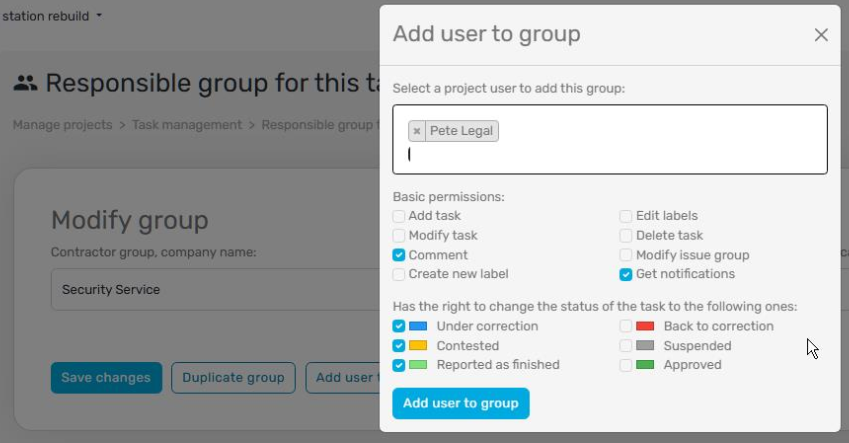
myPlan.cloud uses a group-based approach. Assignment, delivery and approval are organised through groups, usually reflecting construction trades such as architecture, mechanical services and electrical work. Each group contains actual project participants.
Make the next action clear within the group
Group membership does not automatically permit every action. Permissions can control whether a user may transfer a task to another group and which statuses they may select. A group can also contain just one participant when a role is carried out by one person.
Participants managing the process, such as the task issuer or inspector, typically belong to several or all relevant groups with broader permissions. The actual memberships and permissions should reflect the project. This lets a team share the practical work while keeping handover and acceptance under control.
When to use daily summaries and instant notifications
Reach participants who are working on site
People see information in the task register when they open it. Contractors and inspectors spend much of their working day on site, however. Notifications are intended to alert them to new work or relevant changes without requiring them to monitor the application continuously.
An effective notification arrangement should answer four questions:
- Does everyone receive the information relevant to their work?
- Can they avoid alerts about tasks that do not concern them?
- Do they receive enough detail to take action?
- Does the notification arrive when they need it?
The two notification modes have different settings
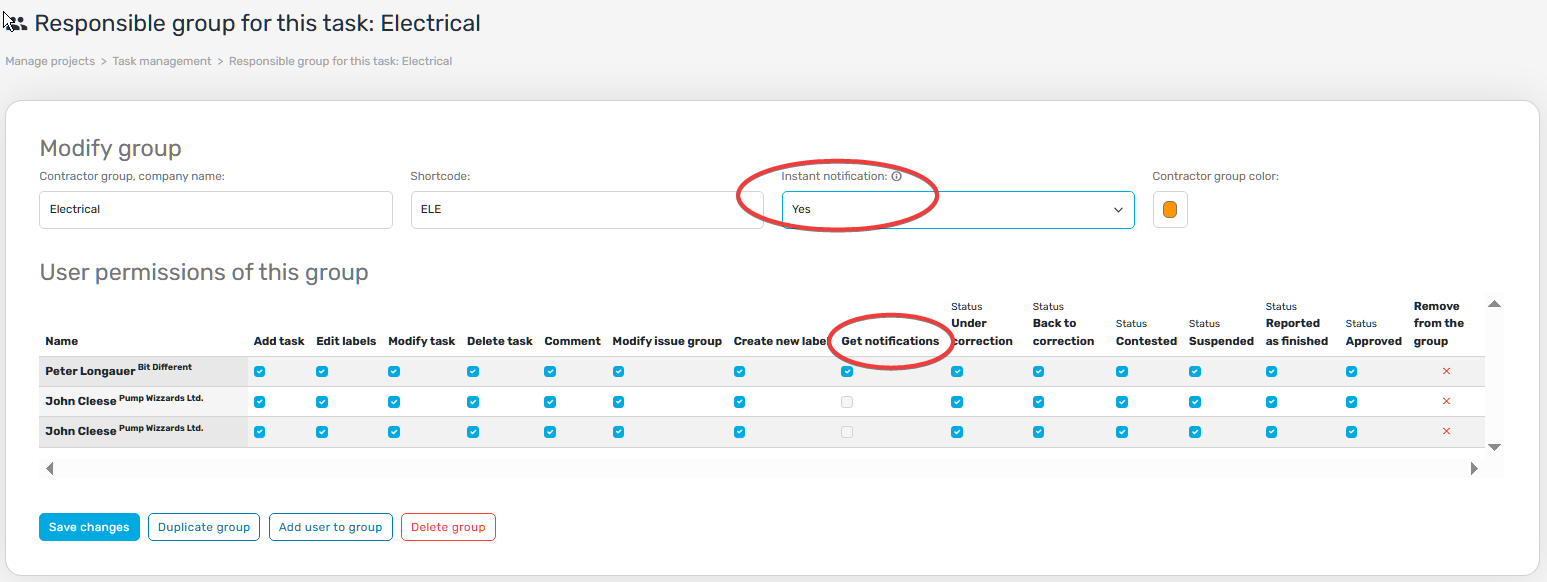
The myPlan.cloud daily summary shows unresolved tasks already within a group's area of responsibility, including newly added work. Receipt of that summary can be configured for individual users. If waiting for the daily summary is unsuitable, instant notifications can be configured at group level.
| Notification | Configuration level | Intended use |
|---|---|---|
| Daily summary | Individual user | Regular review of relevant unresolved and newly added tasks |
| Instant notification | Group | Alerting participants when an action should not wait until the next daily summary |
Choose according to the work schedule and urgency
Suppose an inspector visits the site once every three days. If work awaiting approval is completed in the morning, an instant notification could let them review it that afternoon, where their schedule allows. This is an example of how the setting may be used, not a promised inspection turnaround time.
In an air-conditioning contractor's group, every member may not need a daily summary. It may be sufficient for the foreman and their deputy to receive it if they organise the work for the team. Decide separately whether the group needs instant alerts, particularly where it deals with urgent faults that could create a hazard. A software notification does not replace site safety action or necessary direct communication.
Enabling instant notifications for every group can also produce too much email. If participants cannot distinguish an urgent item from routine messages, the setting is not serving its purpose. Match the recipients and frequency to the work they actually need to handle.
How an assigned task reaches approval
Create the task in the appropriate group
In myPlan.cloud, assignment begins when an authorised user creates the task within the appropriate group. This is typically a project administrator or task management administrator. A broken-window repair could, for example, be placed in the “Architecture” group, where the relevant participants receive notifications according to the configured settings.
The group's daily summary continues to include the task until it moves to another group or the completed work is approved by an authorised user. Reporting completion and approving it are therefore important, separate steps.
The administrator still needs to follow deadlines
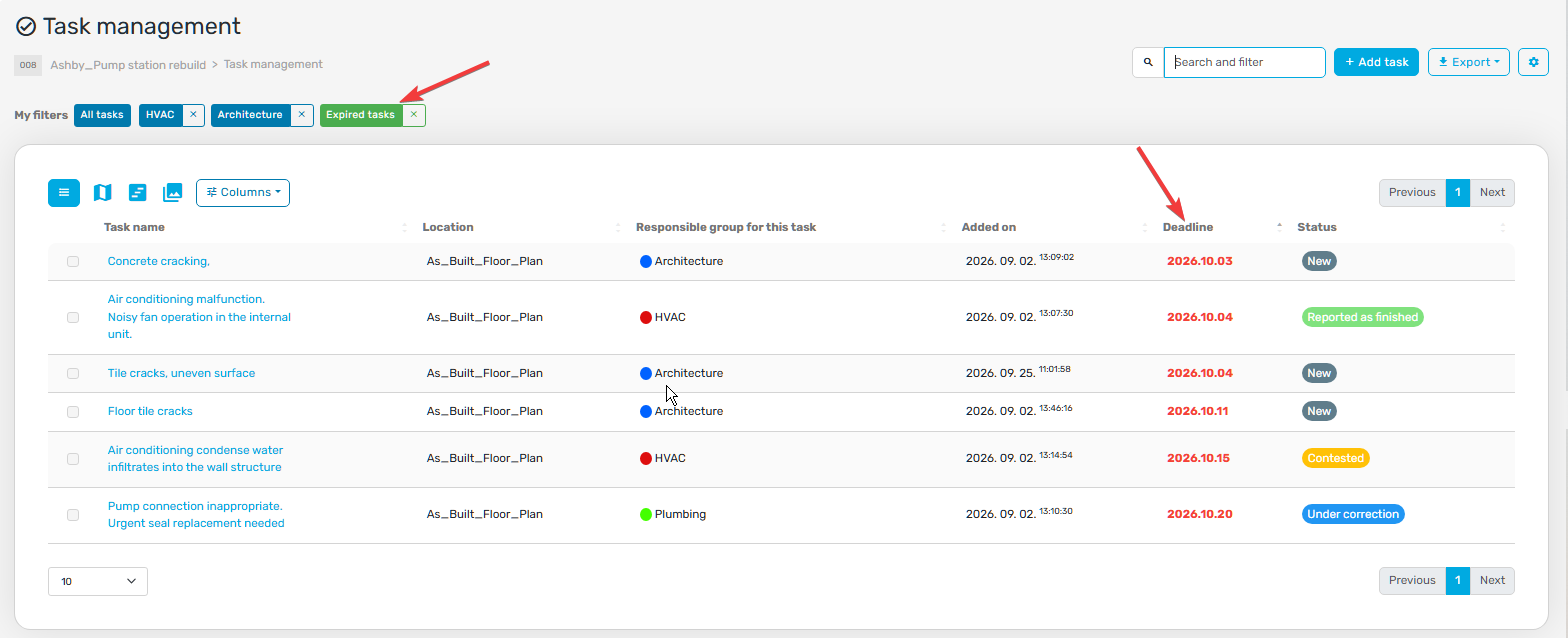
An automatic notification alerts the task's owner; it does not establish that work has started. The administrator needs to review approaching and missed deadlines and contact the contractor separately when action is needed.
The myPlan.cloud dashboard, filters and exports support that review. A filter for overdue items can be saved so that the conditions do not have to be rebuilt for every check. Our guide to tracking and reporting construction tasks and punch list items covers filters and reports in more detail.
Record acceptance in the system as well as discussing it
Record task-related events when they happen. Status changes are logged automatically in myPlan.cloud. After completion is reported, the task may, for example, be marked “Contested”, moved to another trade group or approved by an authorised participant.
If acceptance happens only verbally or through another communication channel, the workflow remains open in the system. Work that has been completed and accepted on site can still appear among unresolved tasks. Bring the status records up to date before the next review rather than leaving the team to reconstruct what happened.
A practical task assignment checklist
- Record the location, technical scope, expected result and due date.
- Select the group that needs to act now.
- Check group members, cover arrangements and the permissions needed for their actions.
- Decide who should receive daily summaries and whether the group needs instant notifications.
- Agree who monitors deadlines and what happens when work stalls.
- Record completion reporting and acceptance in the system.
Frequently asked questions about assignment and notifications
Can one person be responsible for a task?
Yes. A myPlan.cloud group can have a single member, for example when one person fills the inspector's role.
Does a user have the same permissions in every group?
Not necessarily. Permissions can differ between groups, including the right to transfer tasks and to select particular statuses.
What is the difference between daily and instant notifications?
A daily summary provides a regular overview of relevant unresolved tasks, with receipt configured for individual users. Instant notifications are configured at group level where waiting for the daily summary would not be appropriate.
Does every group member need a daily summary?
No. Daily notifications are configured individually. Depending on how the team works, the foreman and their deputy may receive the summary and organise the work for other members.
Do notifications remove the administrator's follow-up work?
No. Notifications do not replace checks of deadlines and progress. The administrator still needs to review delays and take separate action when required.
Does reporting completion close the task?
Not if the workflow also requires approval. An authorised participant must review the result and record acceptance in the system.
Related guides
- What is construction task management? – recording, assigning and reviewing work.
- Track and report construction tasks and punch list items – saved filters and focused reports.
- BIM issue management – identifying a task's precise location in a model.
Explore your own task assignment workflow
The construction task management page introduces the related capabilities. To discuss the setup using your own groups and approval process, send an enquiry through the form. Our colleagues will get in touch.
I'm interested · Launch the sandbox
On the next page, you can register and then sign in to explore the myPlan.cloud interface.