


In short: Tracking construction punch list items means keeping the responsible group, due date and status of every recorded task current until it is closed. In myPlan.cloud, configurable lists, saved filters and different views help teams review the work. Selected tasks can be exported to Excel or PDF with the information needed for a meeting or report.
A coordination meeting can quickly reveal that the task list no longer reflects the work. One repair has been finished but still appears open. Another is overdue, and the meeting is the first time the team hears that it is waiting on a different contractor. Before discussing what happens next, everyone has to reconstruct the current position.
A useful task management system lets you see which items need attention, which group is handling them and what is preventing progress. That depends on the software being set up appropriately and on project participants recording changes as the work moves forward.
Tasks can differ in location, importance, urgency and the people or financial resources they require. A structured register gives managers a way to select and review the work before making decisions. At the start, agree who will maintain the records and when. That takes capacity in an already busy team; the task management system provides a structure for the work rather than removing the need to record it.
What construction punch list tracking covers
Construction task management can cover the whole workflow, from recording and assignment through to review. Tracking is the part that tells you where each item stands and who needs to act next. Our construction task management guide explains how to define and assign the work in the first place.
A construction punch list may be one part of the wider task register. The term punch list, or snag list in the UK, generally refers to outstanding or corrective work, particularly around project handover. The Autodesk introduction to construction punch lists explains the term and the information commonly recorded against each item. Day-to-day task tracking can also include inspections and actions arising from coordination meetings.
Keep completion reporting separate from accepted closure where the workflow requires a review. A contractor may have finished a repair while the inspection is still outstanding. The task record should make that distinction visible.
What to show in the task list
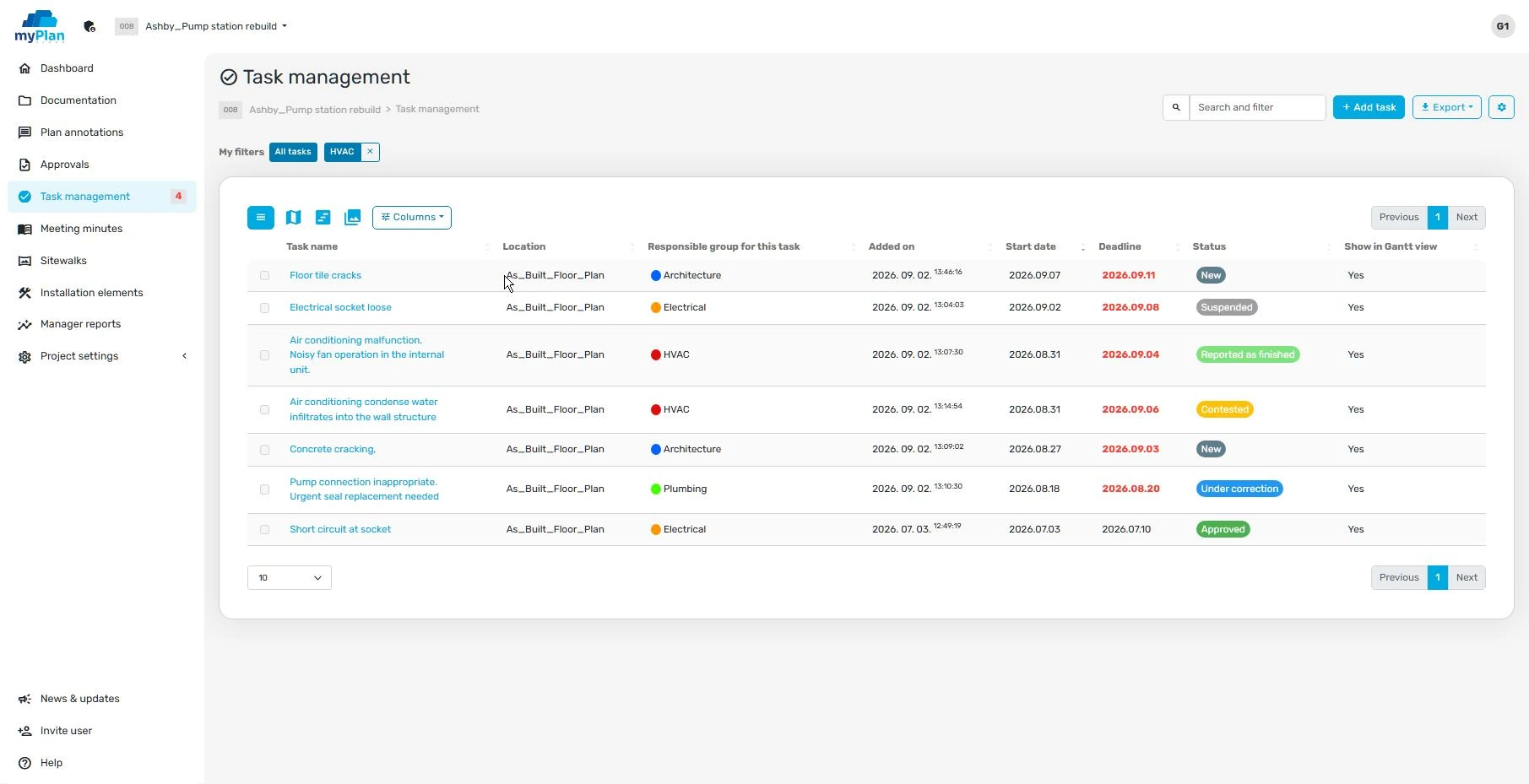
You do not need every available field on screen at once. The opening view should show the information you need for your role. A coordinator may focus on responsible groups and due dates, while someone preparing a site walk may find a location-based order more useful.
| Field | Question it should answer |
|---|---|
| Task name and identifier | Which item are we discussing |
| Location or spatial reference | Where does the work or inspection need to happen |
| Responsible group | Which group is handling this step |
| Due date | When is the work or next step due |
| Status | What has happened and what remains to be done |
| Custom field or label | Which apartment, trade or other project category does the item belong to |
The default task view in myPlan.cloud is a list. You can configure its data columns and sort the tasks. A prominent red number shows the count of overdue items. Custom fields can follow the way your project identifies work, such as an apartment number in a residential building or a runway on an airport project. Those custom fields can also be displayed as columns in the task list.
When a location is difficult to describe in words, a drawing or model reference can help. Our guide to BIM issue management explains how a task can be linked to its position in a model.
Keep responsibility and status clear
Connect responsible groups to actual project participants
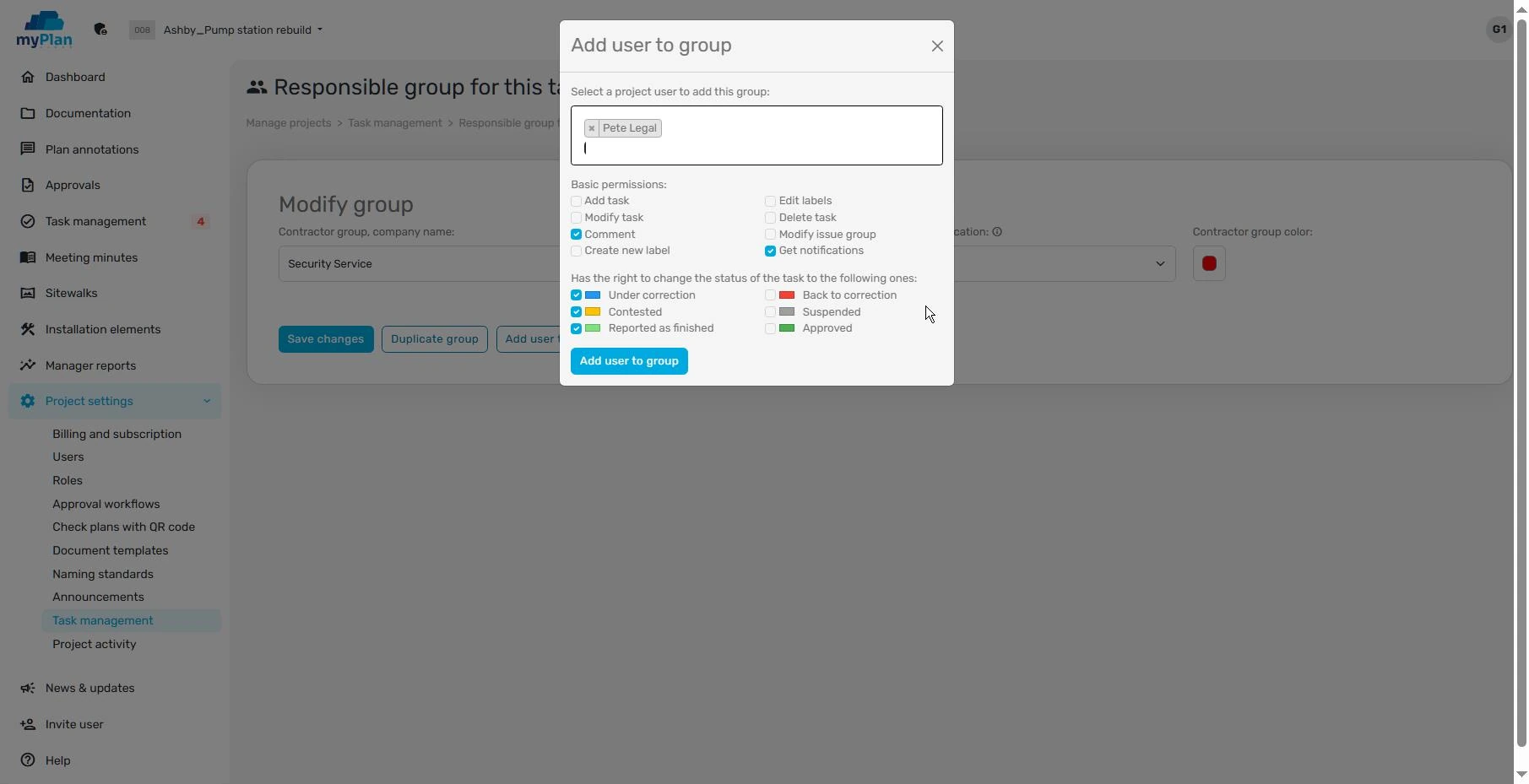
Task management in myPlan.cloud uses groups. A task can be assigned to a responsible group whose members are project participants. The workflow can therefore be organised so that another authorised group member can act when a colleague is away. Group membership and permissions need to support that arrangement.
A group can also have just one member if, for example, a single inspector fills the role. Group-based assignment does not have to make accountability vague. Agree who picks up incoming work and who is allowed to report completion or accept the result.
Use status to show the next action
Statuses represent steps in the task workflow. One possible sequence is recording, correction, completion reporting and acceptance. This is an example rather than a mandatory set of myPlan.cloud statuses. The actual labels and the people allowed to change them should reflect the project process.
When work moves to a different group, record why it was handed over and what the receiving group needs to do. In myPlan.cloud, delegation is handled by moving the task to the appropriate group. Reassignment alone does not establish that the next team has all the information it needs.
When to search, filter or sort
Search is useful when you are looking for a particular task or a few related items, perhaps by name. Filtering gives you a working subset, such as one contractor's open tasks or items awaiting inspection on a particular floor. A search can return more than one result. The practical distinction is what you intend to do with the selection.
Sorting serves a different purpose. If you need to review the whole register in due-date or responsible-group order, you may not need to exclude any items. Change the order first rather than applying an unnecessarily narrow filter.
The myPlan.cloud task filter supports filtering on every data field. You can narrow the register by status, location, responsible group or date, for example. Date conditions can help identify work with an approaching deadline. Tasks can carry labels, and custom data fields can also be used as filter conditions.
Combined filters can be saved for repeated use, so you do not have to rebuild a recurring report's selection each time. The selection remains in place when switching between list, timeline and site-plan views. You can look at the same filtered set in whichever presentation helps the discussion. Exported files are also restricted to the filtered task set.
Use a saved filter for a weekly coordination meeting
Suppose you need to discuss outstanding work with the mechanical contractor. The following is an example of a meeting routine, not a report from a particular customer project.
- Select the responsible mechanical group.
- Include the statuses that still require action. Leave accepted and closed items out of this day-to-day working list.
- Restrict the location if the meeting concerns only one part of the building.
- Sort the results by due date and review overdue items as well.
- Save the filter if you will need the same selection for the next meeting.
- Record the meeting's decisions in the relevant tasks.
The filtered list is not a complete picture of the project. If the discussion reveals a dependency on another trade, review the wider task set too. A filter that is too narrow can hide the connection you need to understand.
Prepare an Excel or PDF report for its intended use
Before exporting, decide who needs the report and what they will do with it. A site walkthrough and a detailed office review may need different levels of information. Including every field and every event can make the important items harder to find.
myPlan.cloud supports Excel and PDF exports. Use the filter to define which tasks belong in the report, then select the information to include through the export settings. For a PDF, for example, you can choose whether to include task data, the event log and pictures.
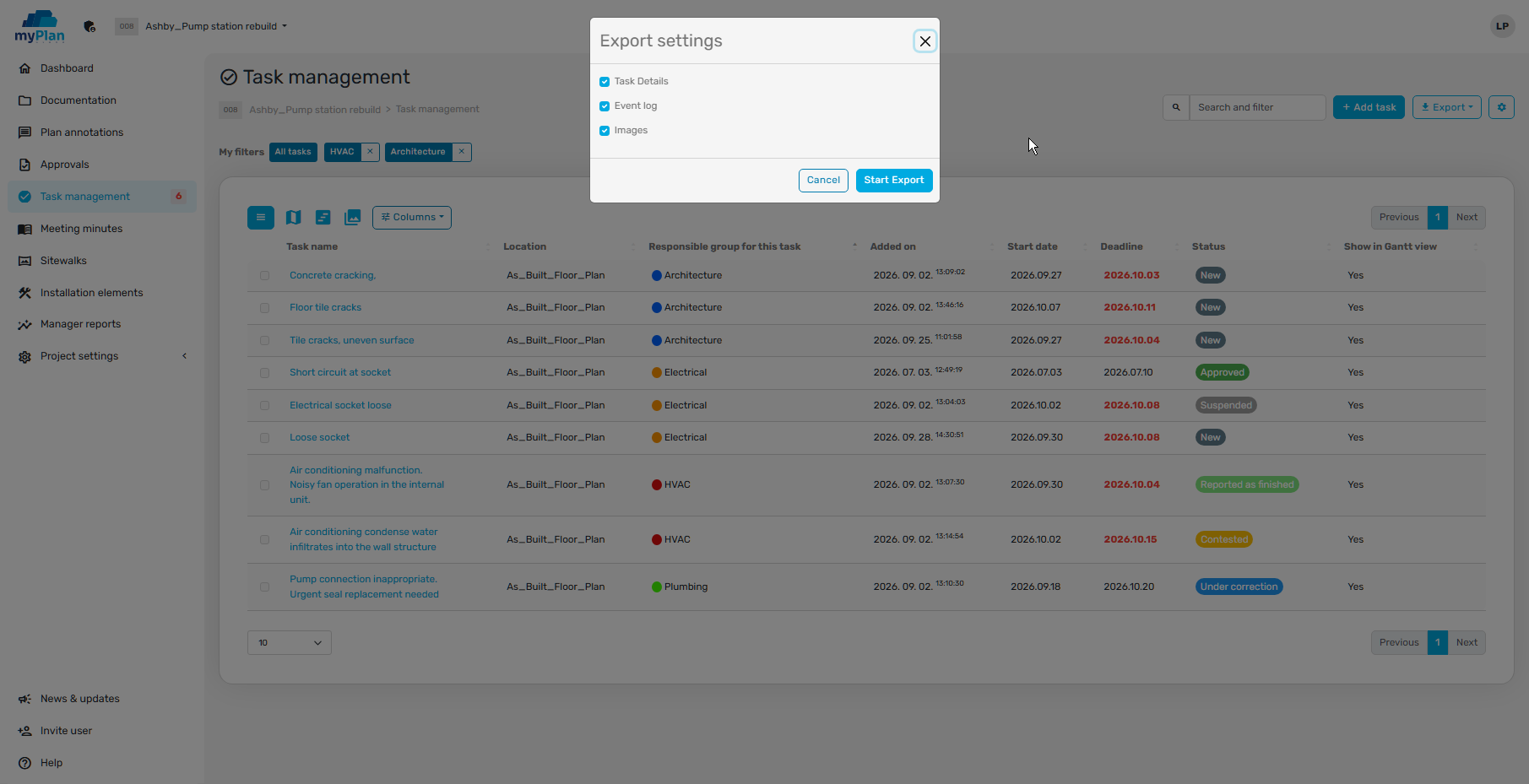
Excel can be convenient when you want to work further with the data in a spreadsheet. PDF is useful for distributing or discussing an assembled report. Treat the downloaded file as a snapshot: changes recorded in the system later do not automatically update an earlier export.
Check the selection, included fields and recipients before sharing it. Project access permissions and the decision to forward an exported report are separate matters.
Keep the task register current
myPlan.cloud automatically notifies the relevant participant when a new task enters their area of responsibility or when they still have outstanding work. A daily summary email lists the related tasks, locations and due dates. Correct group assignments and notification settings are needed for that process to work as intended. A notification tells someone there is an action to take; it does not perform the work or inspect the result.
The person carrying out or reviewing a step should update its status as part of that work. Attached pictures and the event log can help explain what happened when completion is reported. Agree in advance what evidence is needed and how the result will be accepted.
Filter accepted and closed items out of the daily open-work list rather than deleting them to tidy the view. You can focus on the work that needs attention while keeping its history available for reference.
The myPlan.cloud task tracking tools at a glance
Task management software brings recording and follow-up into a shared structure. Appropriate settings, saved filters and automatic notifications can also support repetitive administrative work. The participants remain responsible for accurate records and for carrying out the work.
| Requirement | How myPlan.cloud supports it |
|---|---|
| Record task information | Detailed task records with custom fields and locations marked on a drawing or BIM model |
| Keep work visible | A default list view with configurable columns and sorting |
| Search and filter | Simple search, combined filter conditions and reusable saved filters |
| Add labels and project criteria | Task labels and custom data fields that can be used in filters |
| Assign responsibility | Responsible groups containing actual project participants, including groups with one member |
| Control permissions | Group and individual permissions, including allowed status changes |
| Notify participants | Automatic notifications about work within the recipient's area of responsibility |
| Track status | Statuses covering the task workflow with filtering by status |
| Delegate work | Move the task to the appropriate responsible group |
| Export and report | Excel or PDF output with the selected tasks and the required level of information |
Frequently asked questions about tracking construction tasks and punch lists
Is recording a task once enough?
No. Recording creates the starting point. Changes to the due date, responsible group or status must also be recorded, otherwise the list can quickly drift away from the actual work.
Are tasks assigned to people or groups?
In myPlan.cloud, tasks can be assigned to responsible groups. Group members are actual project participants. A group can have one member when a role is carried out by a single person.
Do recurring filters need to be rebuilt each time?
No. A filter can be saved for reuse. Before the next meeting, check that its conditions still match the work you need to review.
Does a filter apply across the different views?
The selected filter applies to list, timeline and site-plan views. Switching views lets you use another presentation of the same selected task set.
Can I report on one contractor's tasks?
Yes. Filter by the relevant responsible group and any additional conditions, then create an Excel or PDF report with the information required.
Does reported completion mean the task is closed?
That depends on the project workflow. If reported completion needs to be reviewed and accepted, track those as separate steps or statuses. In that process, the contractor's completion report is not the same as accepted closure.
Related guides
- What is construction task management? – how a site observation becomes an assigned, reviewable task.
- BIM issue management – linking a task to its location in the model.
- IFC viewer guide – inspecting models in the browser.
Explore task tracking for your project workflow
If you want to bring a useful filtered list to the next coordination meeting, review the process using your own roles and statuses. The construction task management page introduces the related capabilities.